Get & Use Your Loyalty Card
Install your restaurant's loyalty card on your phone in under a minute, then use it to earn and spend rewards.
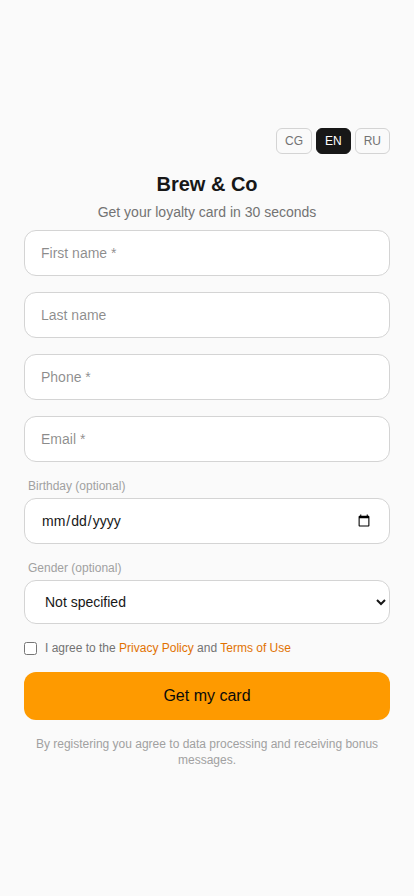
01 Get your card
- Scan the QR code
Look for a QR code on your table, receipt, or at the counter — just ask your server if you don't see one. Point your phone's camera at it and tap the link that pops up. That opens your own personal card.
- No QR code handy? Sign up yourself
Open the sign-up link your server gives you, fill in your name, phone and email, and tap "Get my card".
02 Install on iPhone
Add the card to your Home Screen so it's one tap away, just like an app.
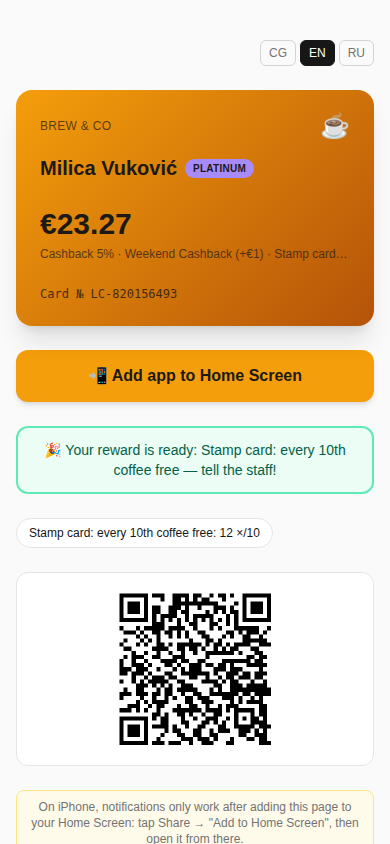
- Tap "Add app to Home Screen"
On your card page, tap the orange 📲 Add app to Home Screen button near the top.
- Tap the Share icon
In the dialog that opens, tap the Share icon at the bottom of Safari.
- Choose "Add to Home Screen"
It's in the list of options that appears above the keyboard.
- Tap "Add"
The card's icon will appear on your Home Screen, ready to open like any app.
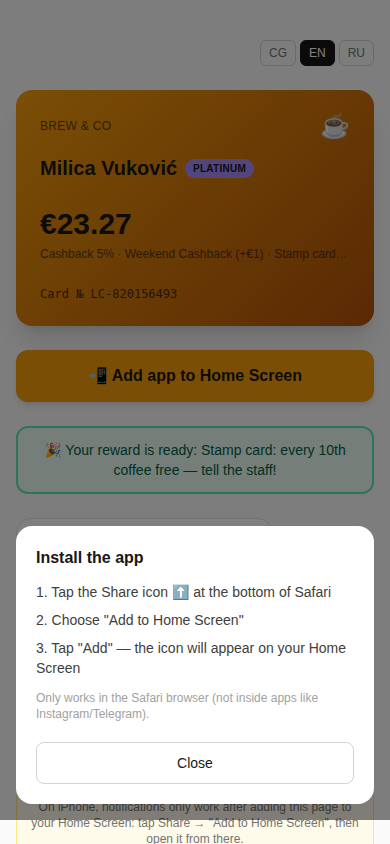
This only works when the page is open in Safari itself. If you tapped the link inside Instagram, Telegram, or Messenger, it opened in that app's own built-in browser — use its menu to choose "Open in Safari" (or "Open in Browser") first, then repeat the steps above.
03 Install on Android
Even faster than on iPhone — just one tap and a confirmation.
- Tap "Add app to Home Screen"
Open your card in Chrome and tap the 📲 Add app to Home Screen button near the top of the page.
- Confirm the install
Your phone shows its own "Add to Home Screen" / "Install app" pop-up — tap Install (or Add) to confirm. No manual steps, no menus to dig through.
04 Using your card

- Balance — the total you have to spend at your next visit, shown right at the top.
- QR code — show this to your server at checkout so they can scan it to add or redeem your rewards.
- Stamp progress — if the restaurant runs a stamp card, you'll see how many stamps you've collected and when your reward is ready.
- Transaction history — every bonus and redemption. Once you've got enough history, older entries collapse into months (e.g. "May 2026 (12 transactions)") — the newest month is open by default, tap any other month to expand it.
- Notifications toggle — turn this on to get updates about your bonuses.
Notifications only start working after you've added the card to your Home Screen (see the install steps above) — turning the toggle on before that won't send you anything yet.
05 FAQ
Does this cost anything?
No. Getting and using your loyalty card is completely free.
What if I lose my phone?
Your card is tied to your phone number and email, not to one device. Just ask a member of staff — they can look you up and help you get back in.
Why is some text in Russian even though I'm reading this in English?
Program and reward names (like a specific cashback or stamp card offer) are typed in by the restaurant itself and don't automatically translate. Everything else on your card follows the language you picked.
My balance didn't update — what do I do?
Just ask your server. They can check your account and correct it on the spot from their side.
Why does my card show two balances?
If the venue runs its loyalty in Syrve, your card shows the Syrve wallets (for example cashback and points). Show the QR or barcode to the cashier: they identify you in Syrve, and discounts and spending are applied at the till.